
 blog
blog
Office IT Decommissioning: 9-Step Checklist for UK Businesses
Last Updated: 28 October 2026
Quick Summary
Decommissioning office IT means clearing equipment in a set order: build an asset register, plan the timeline, back up data, destroy storage securely, dispose of kit with records, then update your systems. Each stage depends on the one before, so following the checklist step by step keeps data and assets accounted for.
- Build your IT asset register before any device is unplugged or moved.
- Test a sample of backups before switching off any system.
- Choose physical destruction for drives holding sensitive or regulated data.
- Keep a certificate of destruction for every storage device processed.
- Cancel or transfer software licences tied to equipment you no longer own.
Table of Contents
- Stage 1: Build Your IT Asset Register Template Before Anything Moves
- Stage 2: Planning the Office IT Relocation Checklist Timeline
- Stage 3: Backing Up and Migrating Data Before Shutdown
- Stage 4: Secure Data Destruction for Business Computers
- Stage 5: Following the IT Asset Disposal Checklist
- Stage 6: Updating Records, Licences and Insurance
- Common Mistakes That Leave Data and Liability Behind
- Booking Your Office Move With Fletcher Removals and Storage
- Frequently Asked Questions
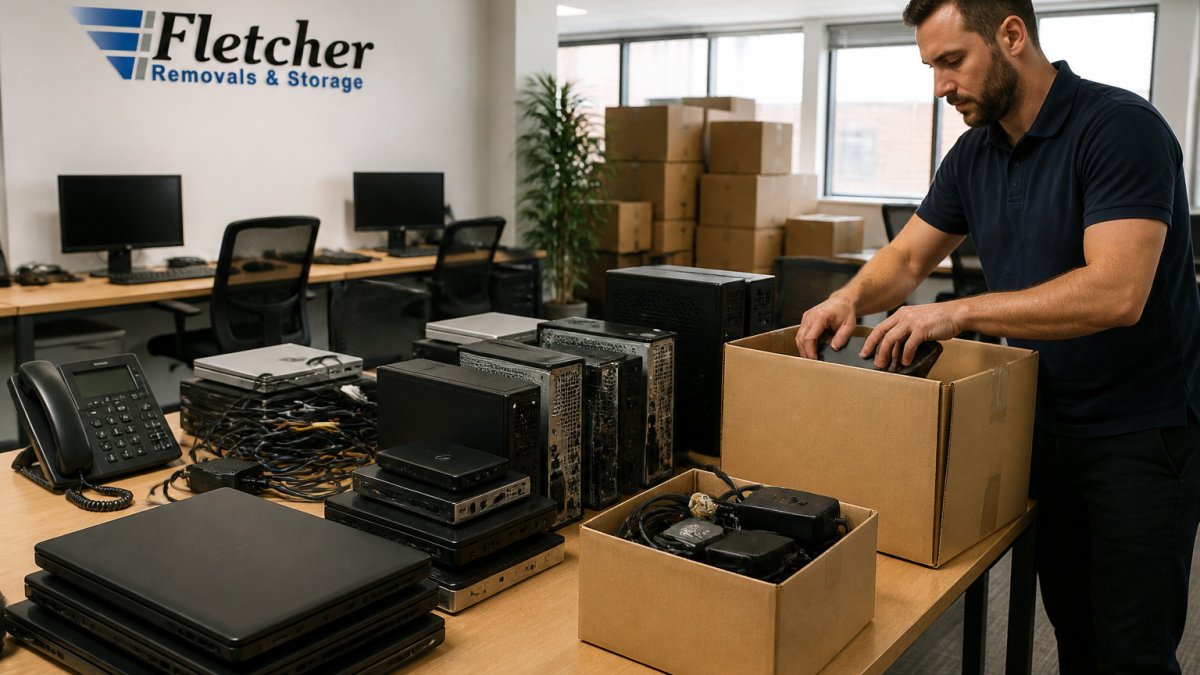
Decommissioning office IT is one of those jobs that looks simple until you are standing in an empty room with a pile of cables, a dozen laptops and no idea which one still holds client data. A structured checklist for decommissioning office IT equipment turns that chaos into a sequence you can follow, track and sign off.
Most businesses treat IT clearance as an afterthought. The computers get unplugged on moving day, the servers get pushed onto a van, and the paperwork gets done later, if at all. That approach is where data leaks, lost assets and gaps in insurance cover tend to start.
A checklist works because it forces each stage into order. You record what you own before anything moves, plan the timeline around your relocation, protect data before shutdown, destroy it properly, dispose of equipment with a paper trail, and update your records. Each stage depends on the one before it.
- Know exactly what you own before the move begins
- Protect data before any device is switched off
- Keep a documented trail for every item that leaves
The sections below walk through the steps, from building an asset register to avoiding mistakes.
Stage 1: Build Your IT Asset Register Template Before Anything Moves
Your IT asset register is the single source of truth for everything you are decommissioning. Build it before the first device is unplugged, not during the clearance itself.
A useful register records the item type, make and model, serial number, asset tag, location, the user or department it belongs to, and whether it holds data. Add a column for the planned disposal route so nothing is left undecided.
- Device type and model
- Serial number and asset tag
- Current location and assigned user
- Data-bearing status (yes or no)
- Disposal route and date
- Sign-off initials
Walk the floor with a checklist in hand and tick off each device as you record it. Storage devices, printers with memory, and mobile phones are the items most often missed.
Stage 2: Planning the Office IT Relocation Checklist Timeline
Work backwards from your moving date. Most teams need several weeks to back up data, arrange disposal and confirm that equipment will travel safely.
Set a timeline with clear deadlines: register complete, backups verified, final data wipe booked, and equipment labelled for transit. If you are moving premises, the wider logistics may also need planning.
Build in buffer time. Problems with a single laptop can stall the whole schedule if you leave no room for them.
Stage 3: Backing Up and Migrating Data Before Shutdown
No device should be switched off until its data has been backed up and checked. Start with servers and shared drives, then move on to individual workstations.
Confirm that backups are complete and readable. Open a sample of files from each backup to make sure they restore properly. A backup you have never tested is only a hope.
Plan where data will live after the move. Cloud storage, a new on-site server or a secure external archive each have different access and retention rules, so decide before you start copying.
Stage 4: Secure Data Destruction for Business Computers
Once data has been safely moved, every storage device needs to be cleared or destroyed. Simply deleting files or reformatting a drive is not enough, because recovery tools can often read what remains (Secure sanitisation and disposal of storage media).
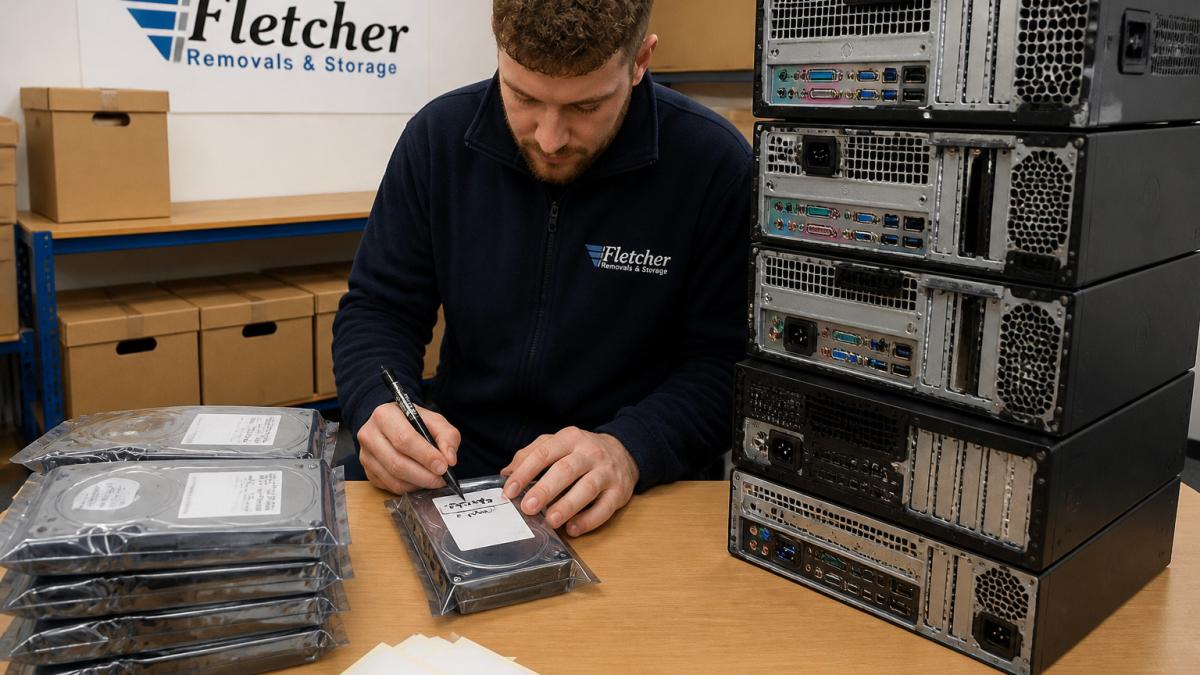
Keep a certificate of destruction for each device. This document is your proof that data was removed, and it matters if a client or regulator asks what happened to their information.
Work with a provider that gives you a written record of every drive processed. Ask how each device is tracked from the moment it leaves your building.
Choosing Between Wiping, Degaussing and Physical Destruction
Each method suits a different situation. Wiping overwrites data and lets the hardware be reused. Degaussing uses a strong magnetic field to scramble magnetic drives, and it is quick but leaves the drive unusable. Physical destruction shreds or crushes media and is the safest option for sensitive data.
- Wiping: best for working machines you plan to resell or reuse
- Degaussing: best for magnetic hard drives you will not reuse
- Physical destruction: best for drives holding sensitive or regulated data
When in doubt, choose physical destruction for anything that held confidential records.
The article sets out three destruction methods, each suited to a different situation:
| Method | Best for | Key difference |
|---|---|---|
| Wiping | Working machines you plan to resell or reuse | Overwrites data so hardware can be reused |
| Degaussing | Magnetic hard drives you will not reuse | Scrambles magnetic media; drive becomes unusable |
| Physical destruction | Drives holding sensitive or regulated data | Shreds or crushes media; safest option |
Stage 5: Following the IT Asset Disposal Checklist
Disposal is where your register proves its value. Every item leaving the site should match a line in your register, and every line should end with a documented outcome. If you are also clearing furniture and fittings, our office furniture dismantling and assembly guide explains how that work is handled alongside the equipment.
Use a disposal checklist that records the date, the collector, the destination and the outcome for each batch. Keep copies of waste transfer notes and certificates (Dispose of business or commercial waste: Waste transfer notes). These records protect you if questions come up later.
If you are also moving furniture and fittings at the same time, co-ordinate the schedules so equipment is not stacked beside items still awaiting clearance.
Stage 6: Updating Records, Licences and Insurance
Once equipment has left the building, update every record that referred to it. That includes your asset register, software licence inventory, network diagrams and any warranty or lease documents.
Cancel or transfer software licences tied to devices you no longer own. Unused licences still cost money, and some carry compliance obligations.
Review your insurance too. Check what your policy covers for equipment in transit and in storage, and ask your broker to confirm the position in writing.
Common Mistakes That Leave Data and Liability Behind
The same errors appear again and again in office clearances. Knowing them in advance helps you avoid them.
- Forgetting printers, phones and USB drives that store data
- Relying on deletion instead of proper wiping or destruction
- Failing to test backups before shutting systems down
- Losing track of which devices have already been collected
- Skipping certificates and leaving no proof of destruction
A simple rule helps: if a device could hold client information, treat it as sensitive until a certificate says otherwise.
Booking Your Office Move With Fletcher Removals and Storage
A well-run decommissioning gives your move a clean start. At Fletcher Removals and Storage, we serve commercial clients across Coventry and the wider UK who require professional handling of their possessions. Our trained, uniformed staff and Goods in Transit and Public Liability Insurance are among our key features. We offer onsite warehouse storage in container and self-storage formats.
Get in touch with us to discuss your requirements and request a quote.
Frequently Asked Questions
What should be included in an IT decommissioning checklist?
A solid checklist covers an inventory of every device and its serial number, a list of the data each device holds, confirmation that backups are complete, secure data erasure or destruction with written certificates, licence deactivation, removal of network and account access, and a documented disposal route. Keep the signed paperwork with your asset register so you can show what happened to each item if questions arise later. Assign one named person to sign off each stage before equipment leaves the building.
How do you securely wipe office computers before disposal?
Use a data erasure tool that overwrites every sector of the drive, or follow the NCSC guidance on sanitising storage media. Standard deletion or quick formatting is not enough, because recovery software can often retrieve the files. Verify the wipe with a report, and keep that report with the asset record. For drives that cannot be reliably wiped, such as failed or damaged units, physical destruction is the safer option.
How should a business dispose of IT equipment securely?
Use a licensed waste carrier or an authorised WEEE recycler, and make sure they provide a collection note and a data destruction certificate for every batch.